Welcome to what is by far the most popular post on NewbieDM. More than 20000 (!) of you have made your own tokens for use in your games, and I’m thankful that I’ve been able to help DM’s out there run a better D&D game. I invite you to take a look around the site, there’s tons of good stuff here for DM’s, both new and old alike. I’m also proud and honored that NewbieDM was selected as one of Wired Magazine’s Top 5 Greatest RPG Blogs, and again, I invite you to take a look around the rest of the posts on the site. Happy Gaming!
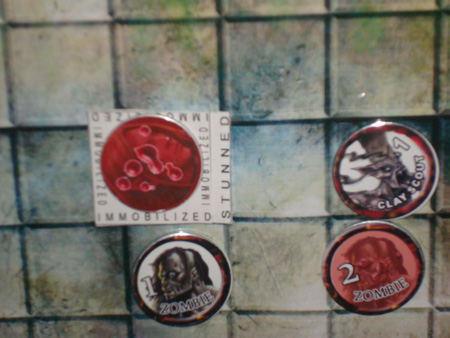
I’m going to make my first attempt at making a tutorial here, and try to show you how I make my D&D tokens. It’s not as simple as cutting out little papers or cardstock, I like to make them durable and permanent.
Presenting…. NewbieDM’s Kick Ass Token Makin’ Tutorial!!!
Okay, this tutorial assumes a few things…
- That you own a copy of, and have some experience using Photoshop. If not download Gimp, an open source equivalent.
- That you also own a copy of the TokenTool software, a free token making utility.
- That you have 1″ metal washers. A bag of 8 costs $1.00 at Home Depot.
- That you own a 1″ hole punch. They are available at craft stores, or Ek Success PSPNP13 1-Inch Paper Shapers Circle Nesting Punch
here.
- That you have an Elmer’s Glue Extra Strength Glue Stick. I bought it at Office Depot.
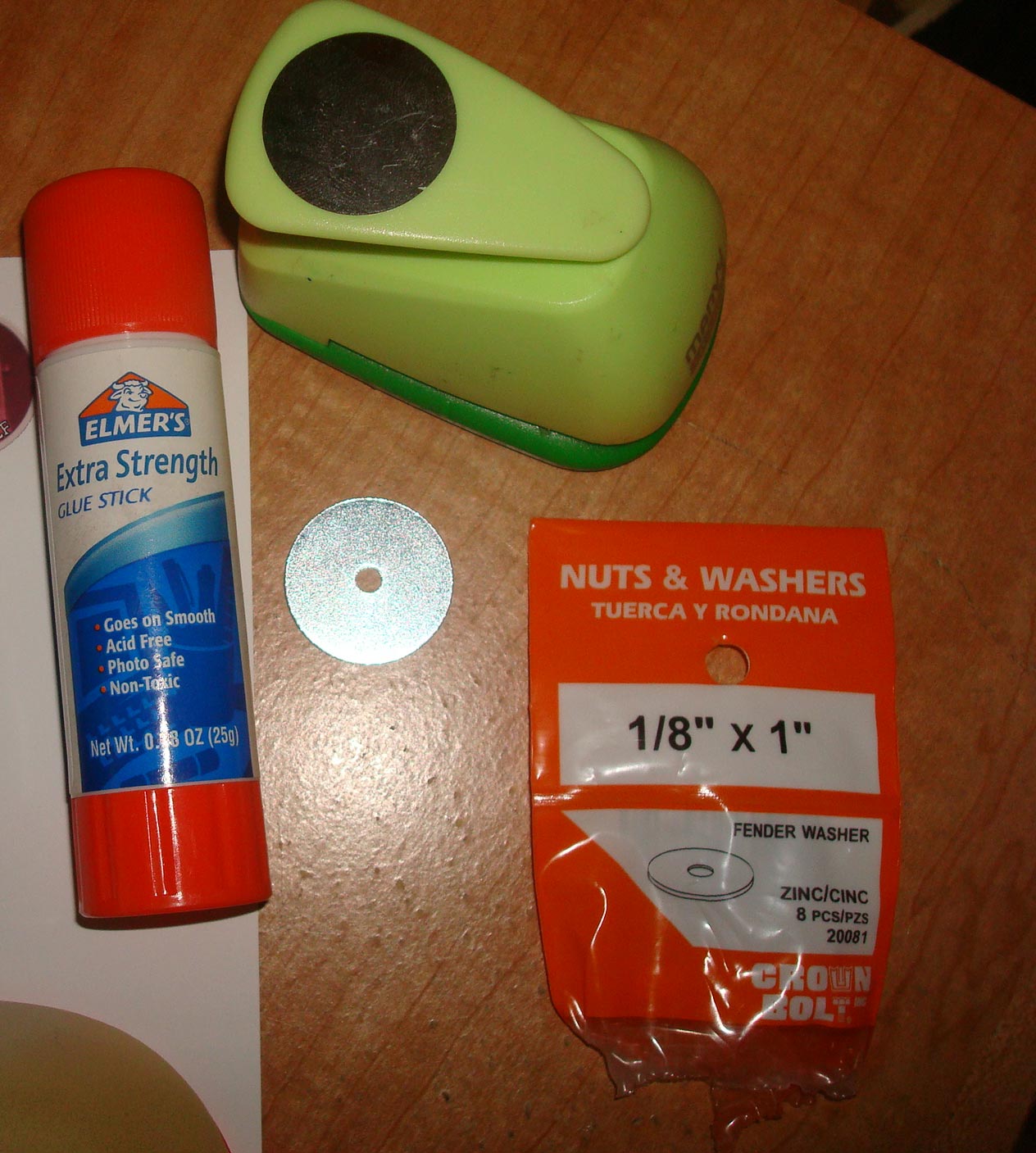
If you plan to use Gimp, try to follow along. I don’t know Gimp at all, I’ve never used it. Also, if you do use Photoshop, keep in mind that I am not an expert on it. I know just enough to do what I have to do and that’s it. I may be doing something that you know can be done differently and faster, then by all means do it.
Okay, the tutorial then.
Open Tokentool and drag a picture unto it. I find pictures on the web, or on pdf’s. The higher the resolution, the better. I searched for a hi-res picture of Gandalf on Google.

Make your width and height 256, and select a frame/border for the token. Once you do that, you can adjust the zoom level and in the upper right corner, you’ll see what the final token looks like.
Open photoshop, and grab the token image on the top right of Tokentool, and drag it unto photshop, where it will open as a .png file called .token.drag. Then go ahead and create a new CMYK document. From what I understand CMYK will match what color is on the screen to the paper better than RGB. Right, sounds like Chinese, I know. Anyways, I print on 8×11 photopaper, so that’s the size I pick, “Letter”.
It is very important that your resolution matches the size of the token height/width you picked in Tokentool. If you picked 256 then your photoshop resolution has to match. I usually go with 200, don’t ask me why… As long as the resolution on Tokentool matches the resolution of Photoshop, you’ll be fine.
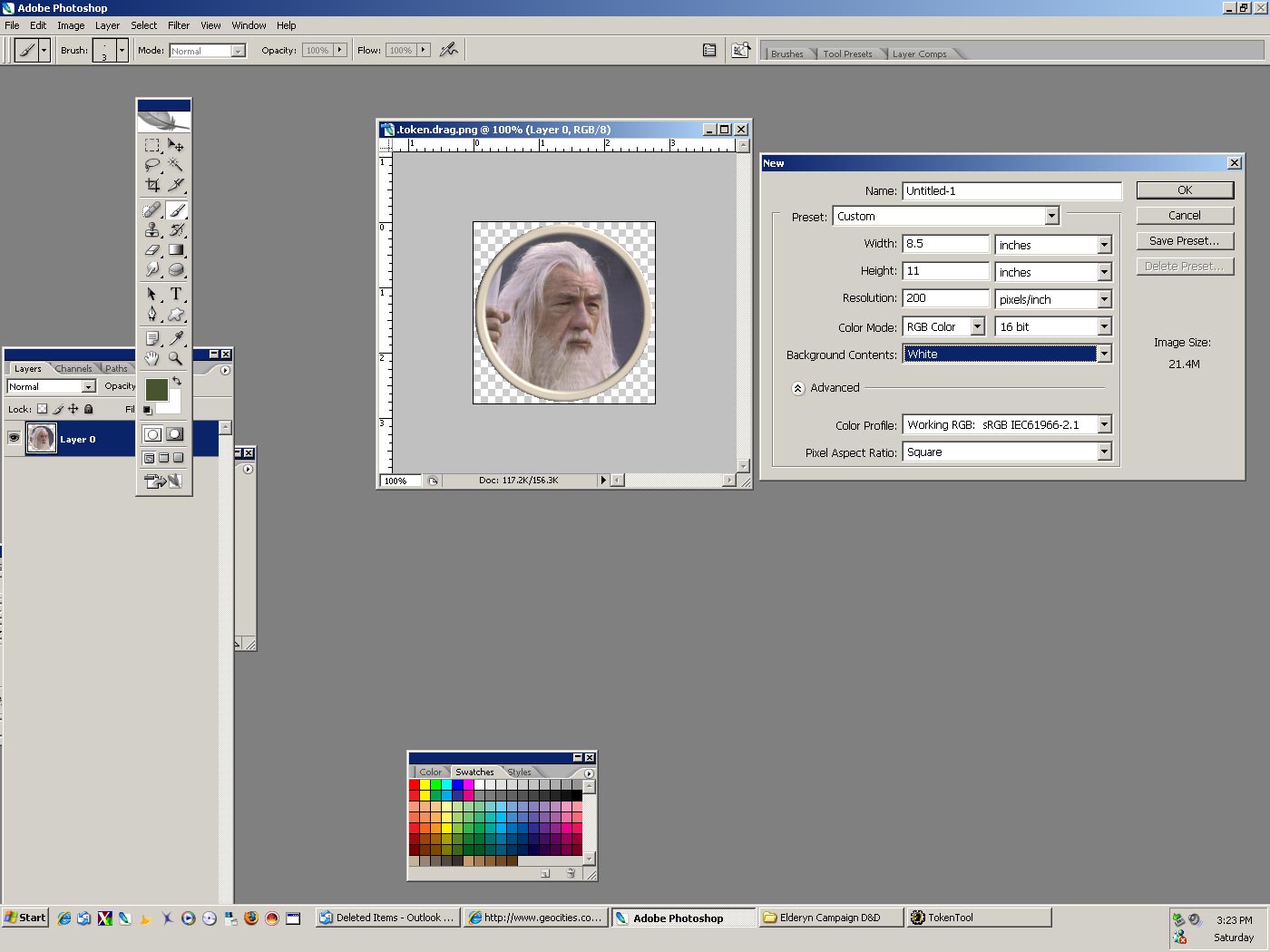
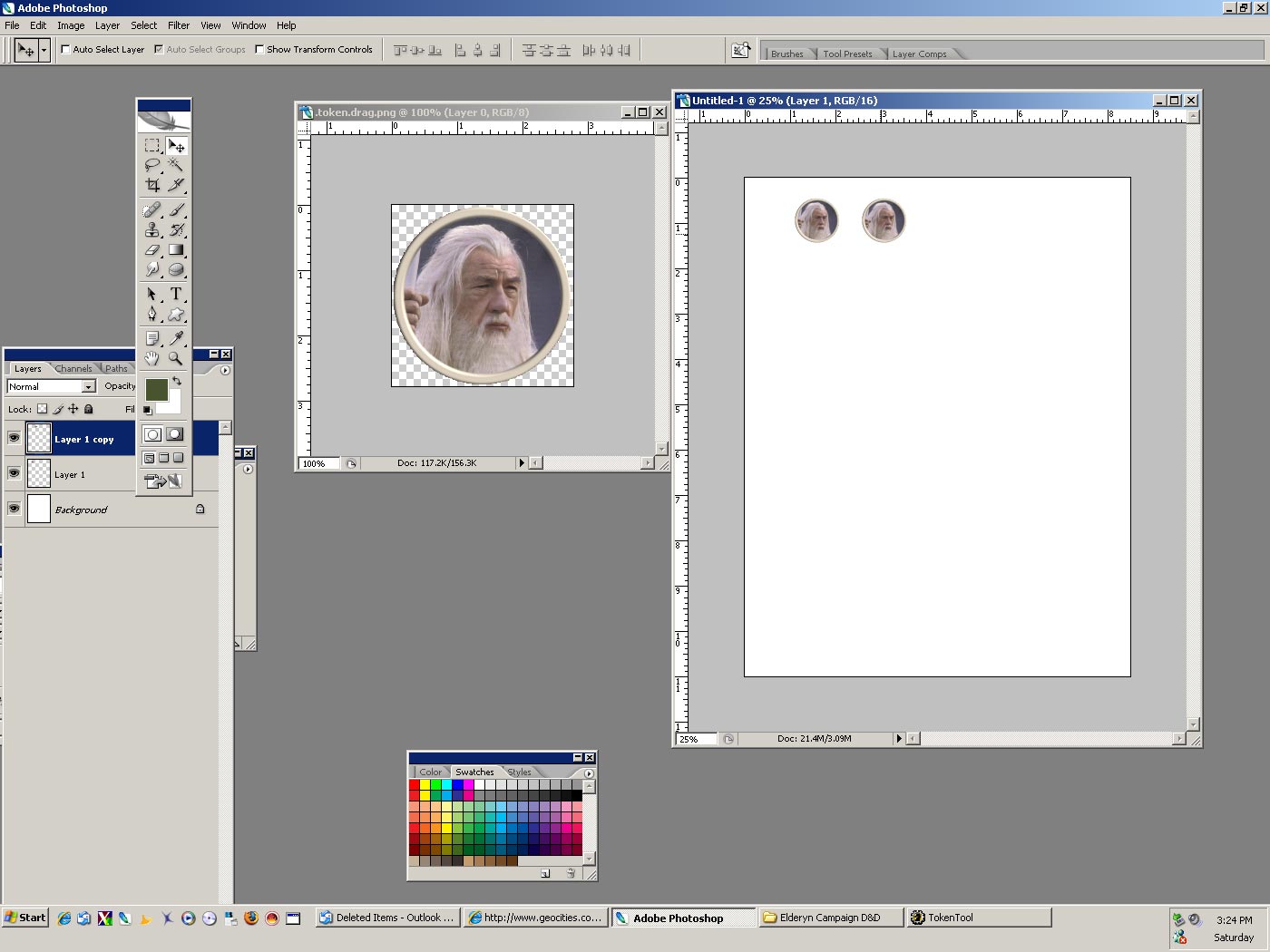
Once your new document is created, go ahead and drag the .token.drag. file unto it. You’ll see that it keeps its 1″ size, and I’m assuming you have the ruler visible in photoshop. If not, go to View>Rulers to make it visible. Position the token on the document at about 1″ off the top and the left margin, to allow for printing margins. And now, we will duplicate it, so the token has two sides, as we’ll make the flip side of the token it’s “bloodied” equivalent. Duplicating it is easy:
Hold down the ALT key, as you grab it with the select tool, and drag it to the side. You’ll actually create and drag a duplicate. It’s that simple. That duplicate will become layer 2 on your document. Position it where you want it.
So now that you have two versions of Gandalf there, we need to bloody him up. I flip the tokens at the table when a PC or monster is bloodied. Here is a full size .png of the blood file. Save it, and open it in Photoshop.
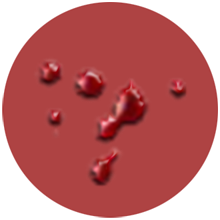
Okay, so now you’ve got the document with the 2 Gandalf’s, the blood, and the original token.drag. of Gandalf all open. You can go ahead and close token.drag. No need to save it either.
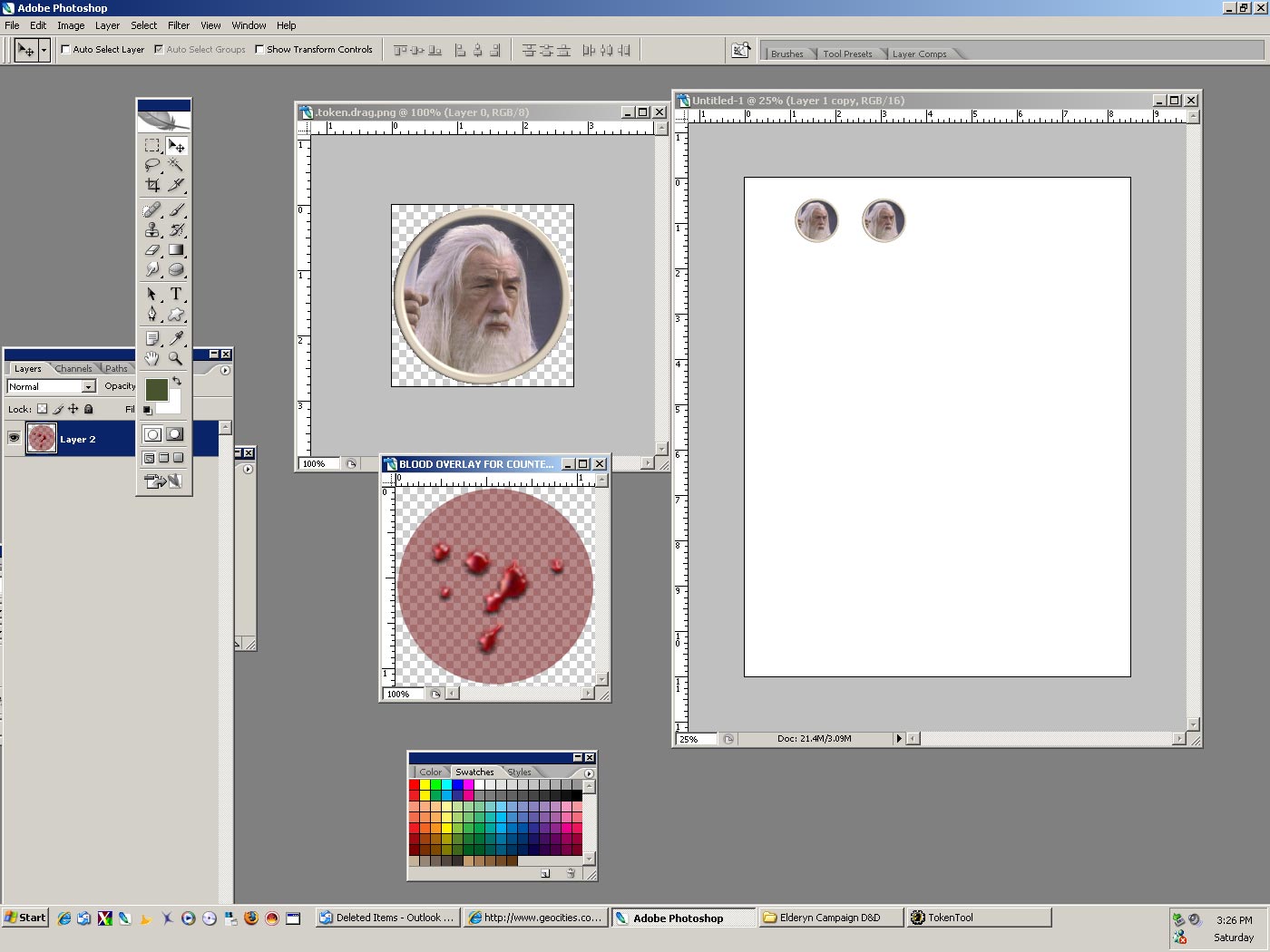
Go ahead and grab the blood, and drag it over the second Gandalf over to the main document. Photoshop will create a new layer, and have it highlighted on the layers box. The blood should be a little larger than the token, so we have to adjust the size. (A note on this: You don’t really need to adjust the size of the blood if you don’t want to, when you punch the token out with the 1″ hole punch it won’t really make a difference. I resize it in order to keep the blood nicely within the frame I selected in Tokentool.) Go to EDIT>TRANSFORM>SCALE and there it will let you adjust the blood size. Hit the select tool and it will ask you to confirm the transformation.
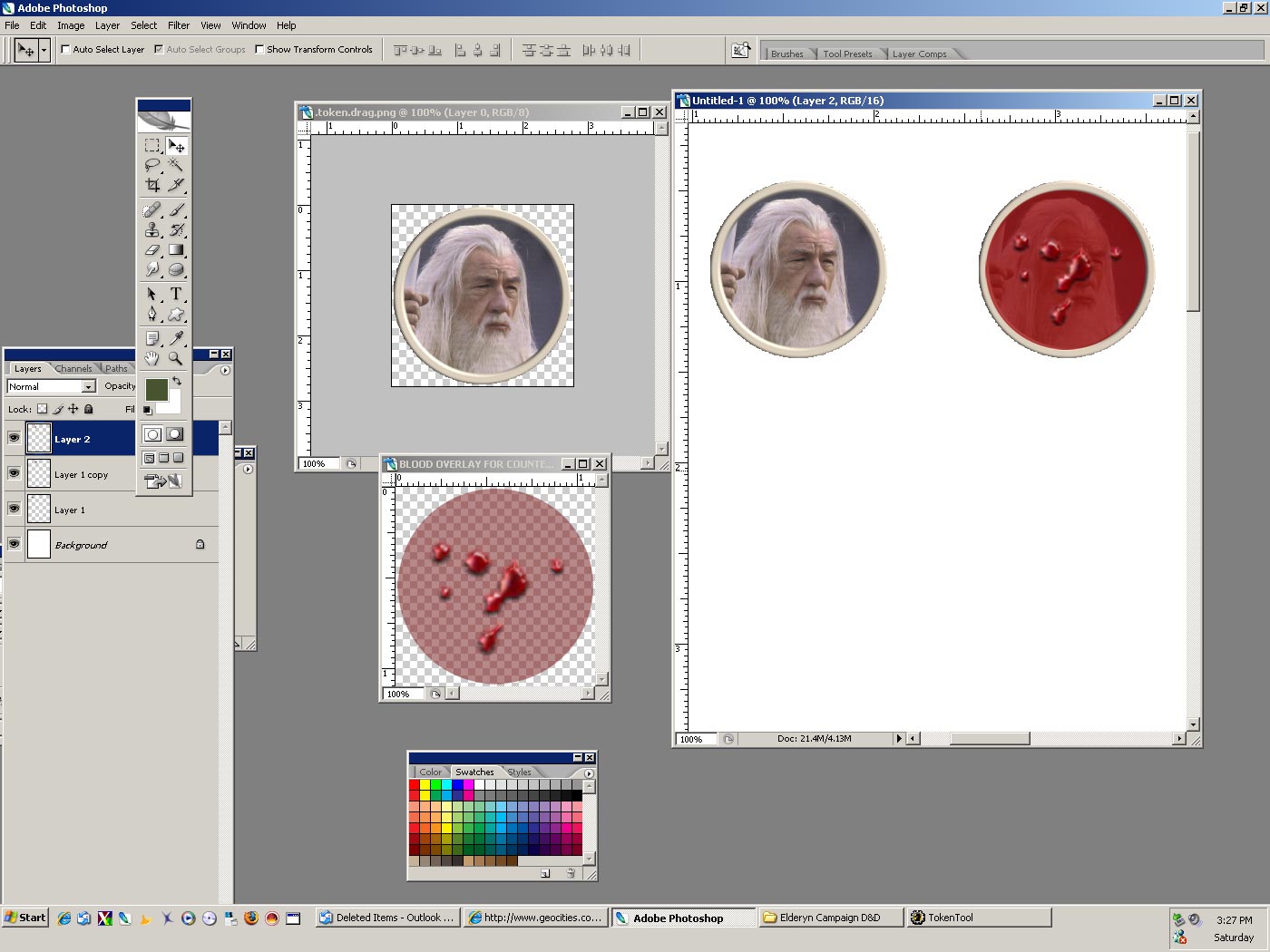
Okay, now the blood seems to be a little too dark, and Gandalf is barely visible. Let’s make the blood more transparent. Right click Layer 3, the blood layer, and go to “Blending Options.” Once that window open up, find the slider that says “Fill Opacity” and drag it to about 60. That should look better. See this image below:
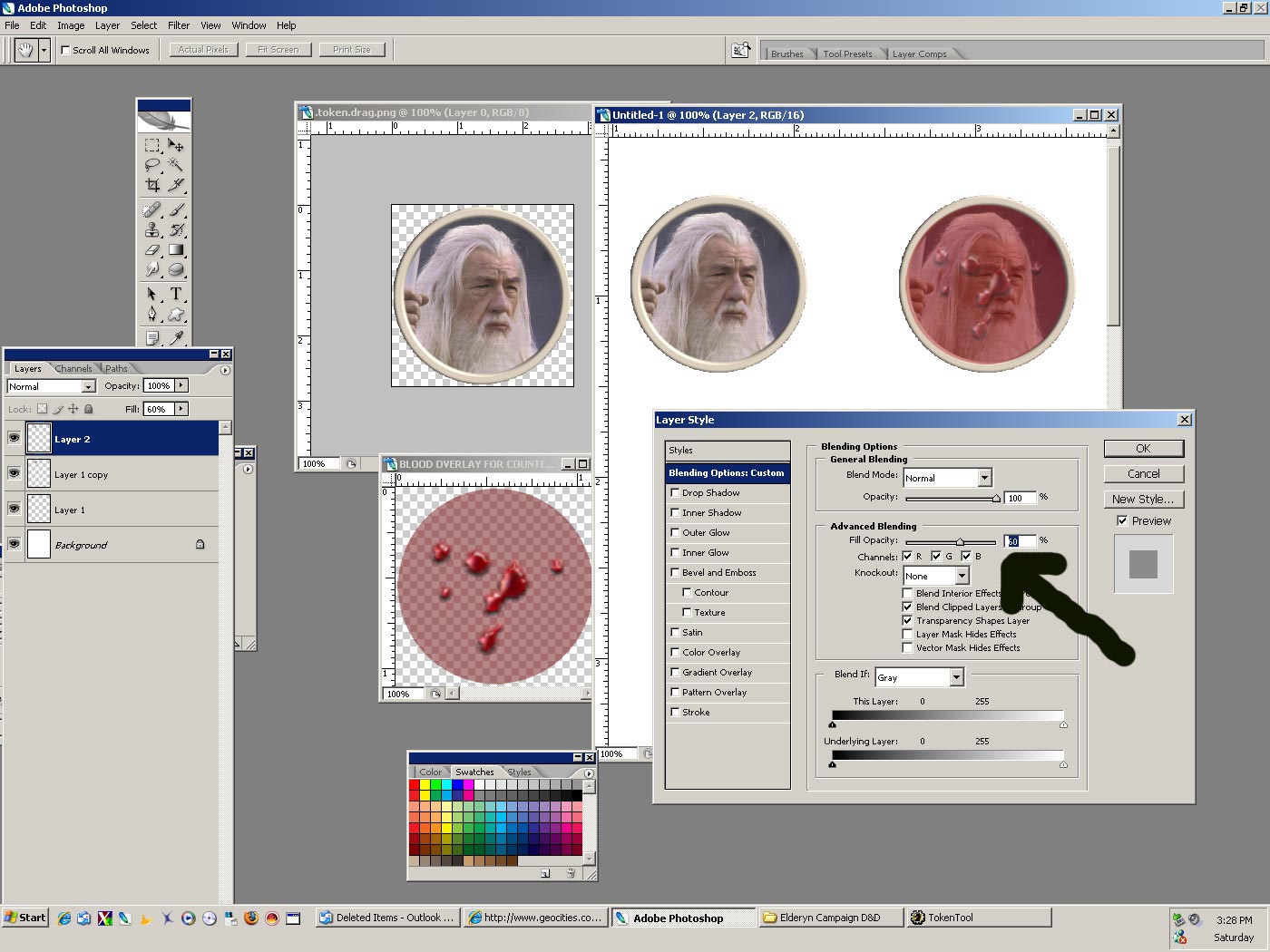
See the difference? Next, let’s go ahead and label Gandalf by name. With minis, it is hard to keep track of what mini is what, and a fight with 10 enemies can get confusing for a DM trying to keep track of what mini represents what guy on the battle map. Not with tokens though. Just add text and numbers, and it’s very simple to run fast paced combat. Goblin 1, Goblin 2, etc…
Okay, click on the text tool, and write “Gandalf” over on the left token. Find a font that’s easy to read, as these tokens are only 1″. If you want, you can curve the text to match the curve of the token. When you type, a T with a curve button will be available on the top bar of photoshop. That allows you to select a curve for your text. You select the text, click that “T” button and pick a type of slant or curve. Position and size the text so it fits over your token.
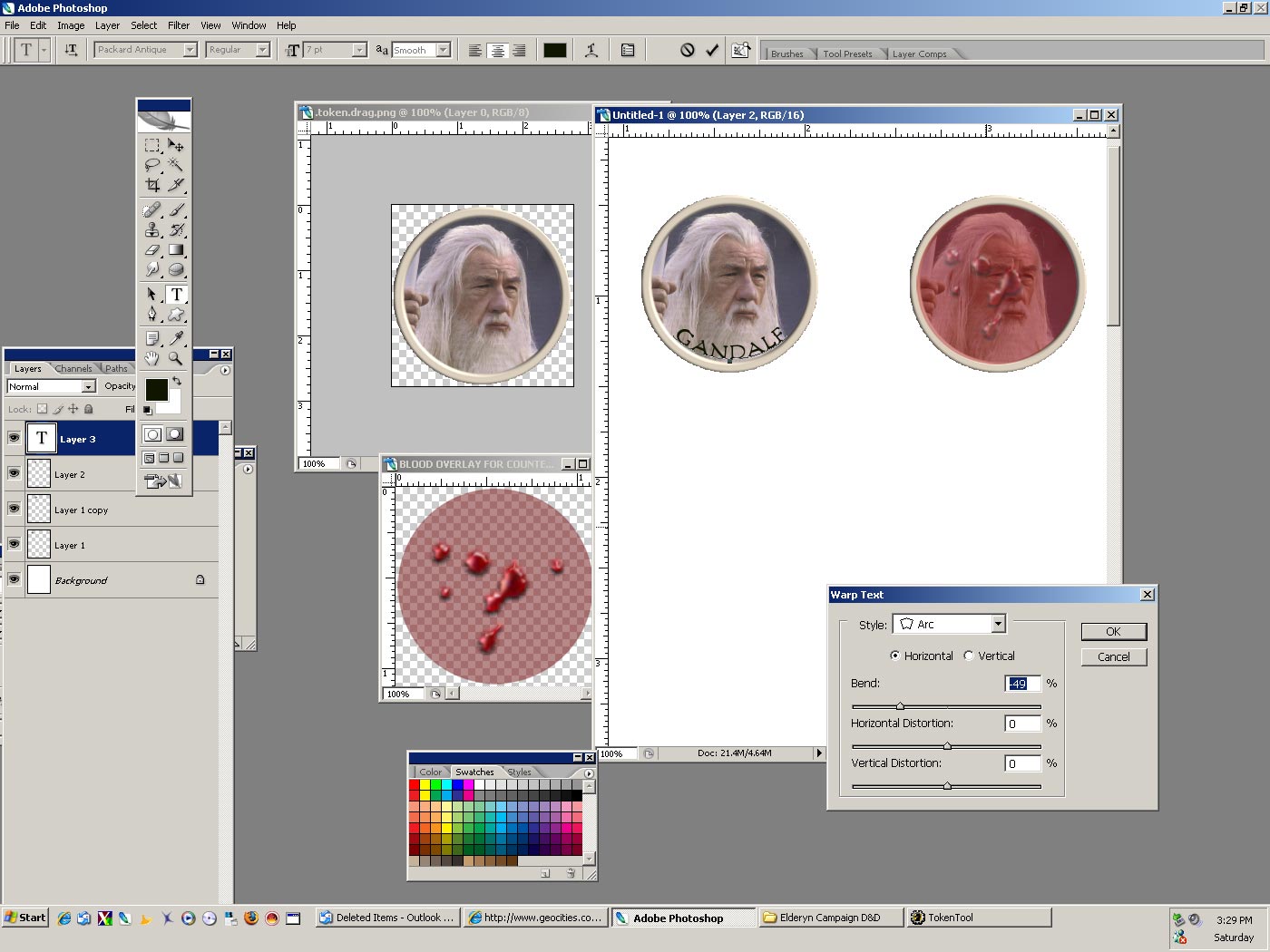
Then just like we did earlier with Gandalf, grab it with the select tool while holding ALT, and duplicate it as we drag it over to bloody Gandalf. Notice the text is a different color in the second pic, and it has an outline? You can select your text color while you have the text tool active, and the outline is called a stroke. You would right click your text on the “layers” window and pick Blending Options, just like we did for the blood transparency. Pick the checkbox at the bottom that says “Stroke”, and select a color. It defaults to red, I usually do white text with black stroke. Pick a stroke width, I usually go with 1.
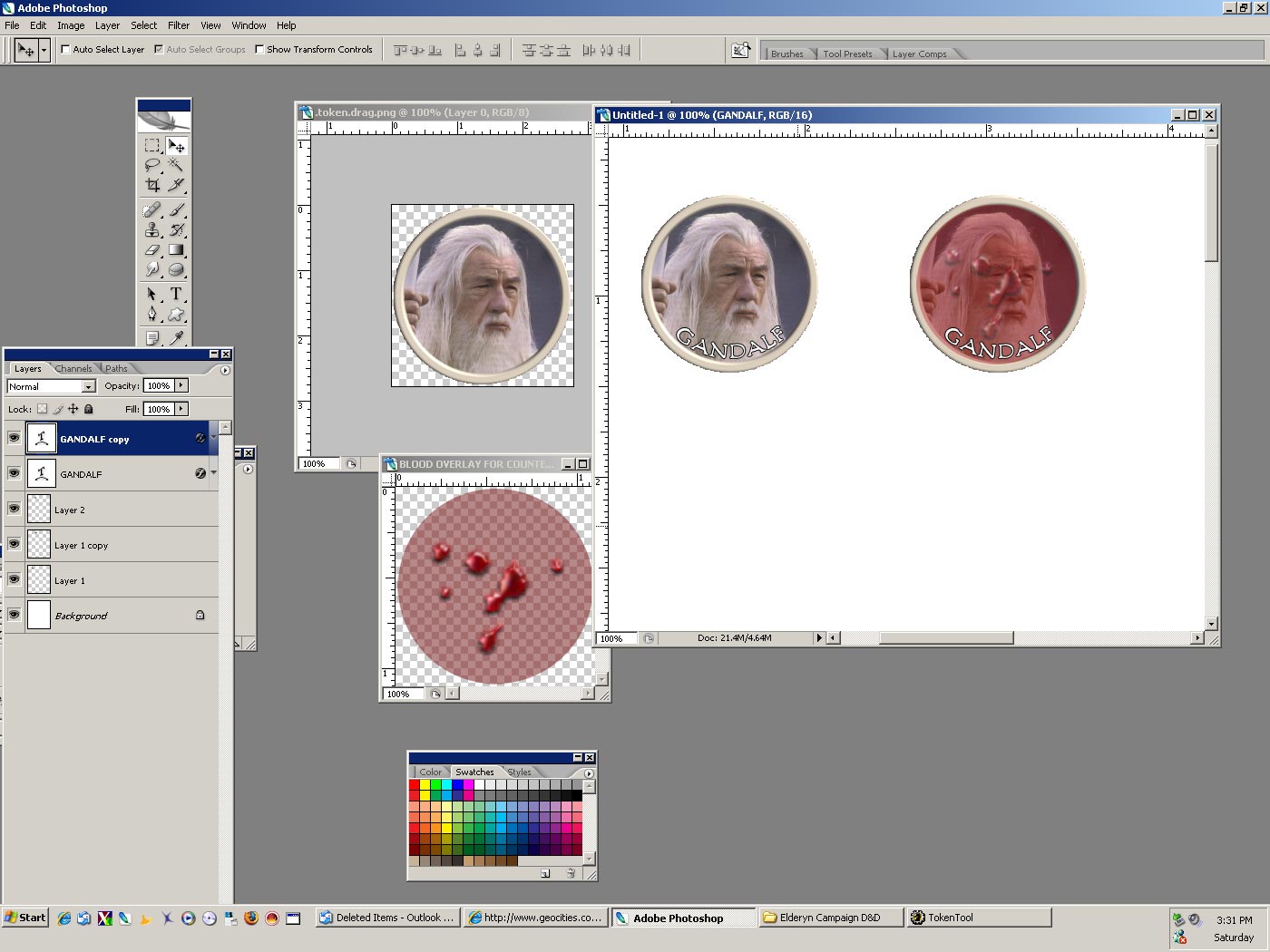
Now, you’re not going to waste an entire paper on two tokens, so repeat the steps above and fill the paper with monsters, labeling them as you go. Keep track of your layers, as they can get confusing. Rename them in the layer window as you work and merge down layers you have finished. It’s very easy for the blood layer to sometimes end up over the text layer, and you don’t want that, you want the text always on top.
This thing with the layers can be the most confusing part. If you are not too familiar with photoshop go and find a basic tutorial to help you with layers.
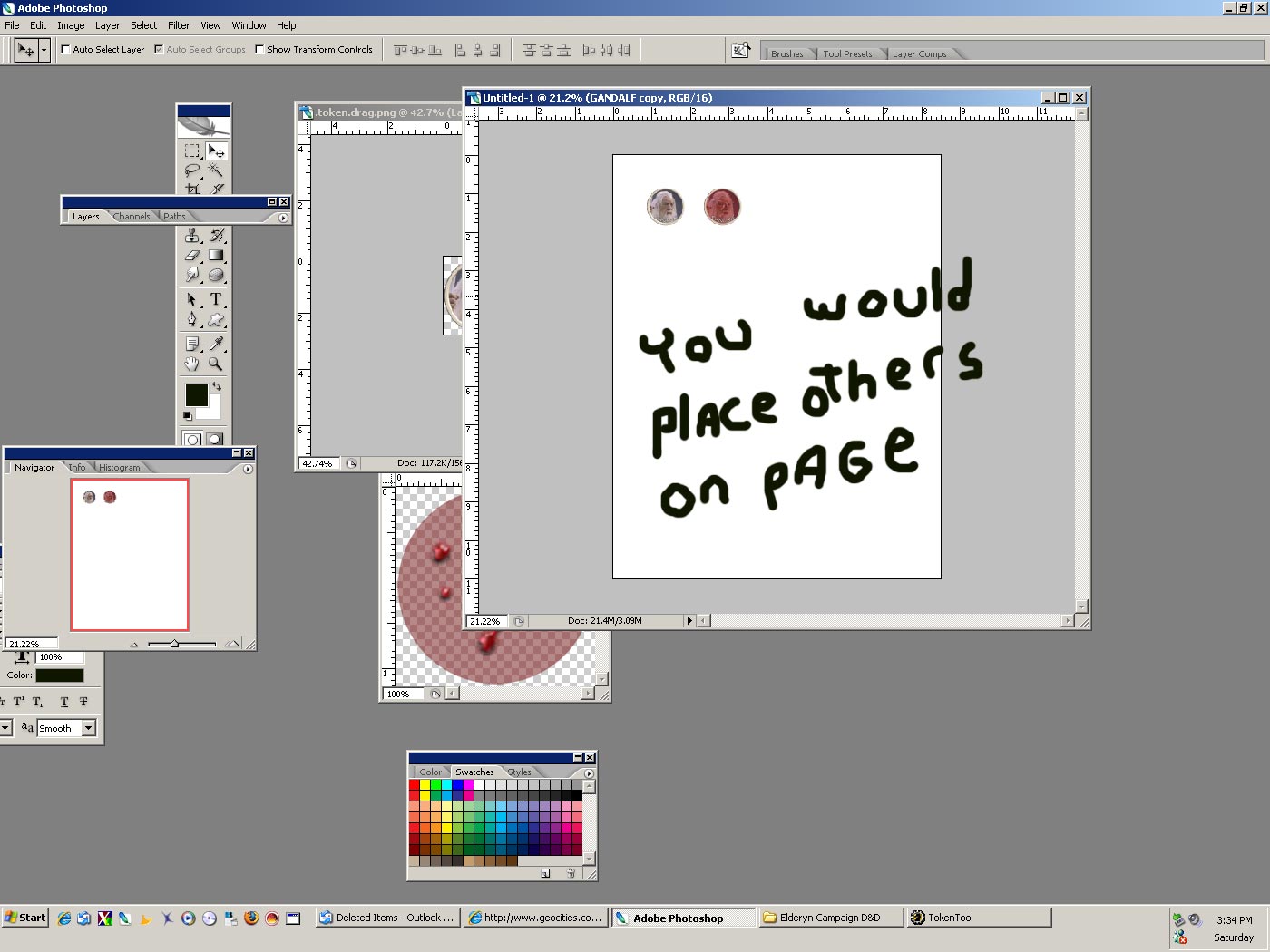
You like my Homer Simpson handwriting? So does my wife. Okay, so you now have a document full of tokens… Let’s get them to the game table! Print them out at the highest quality your printer allows, using the best paper. I use glossy photo paper. It simply looks the best.
Once it prints out, check it out. You should have a 1″ pair of Gandalf tokens. Now it’s time to use your supplies. Use your 1″ hole punch to punch these suckers out, using the window on the punch to align them perfectly. You may need to cut them into strips from the printout, so they can fit in the hole punch.
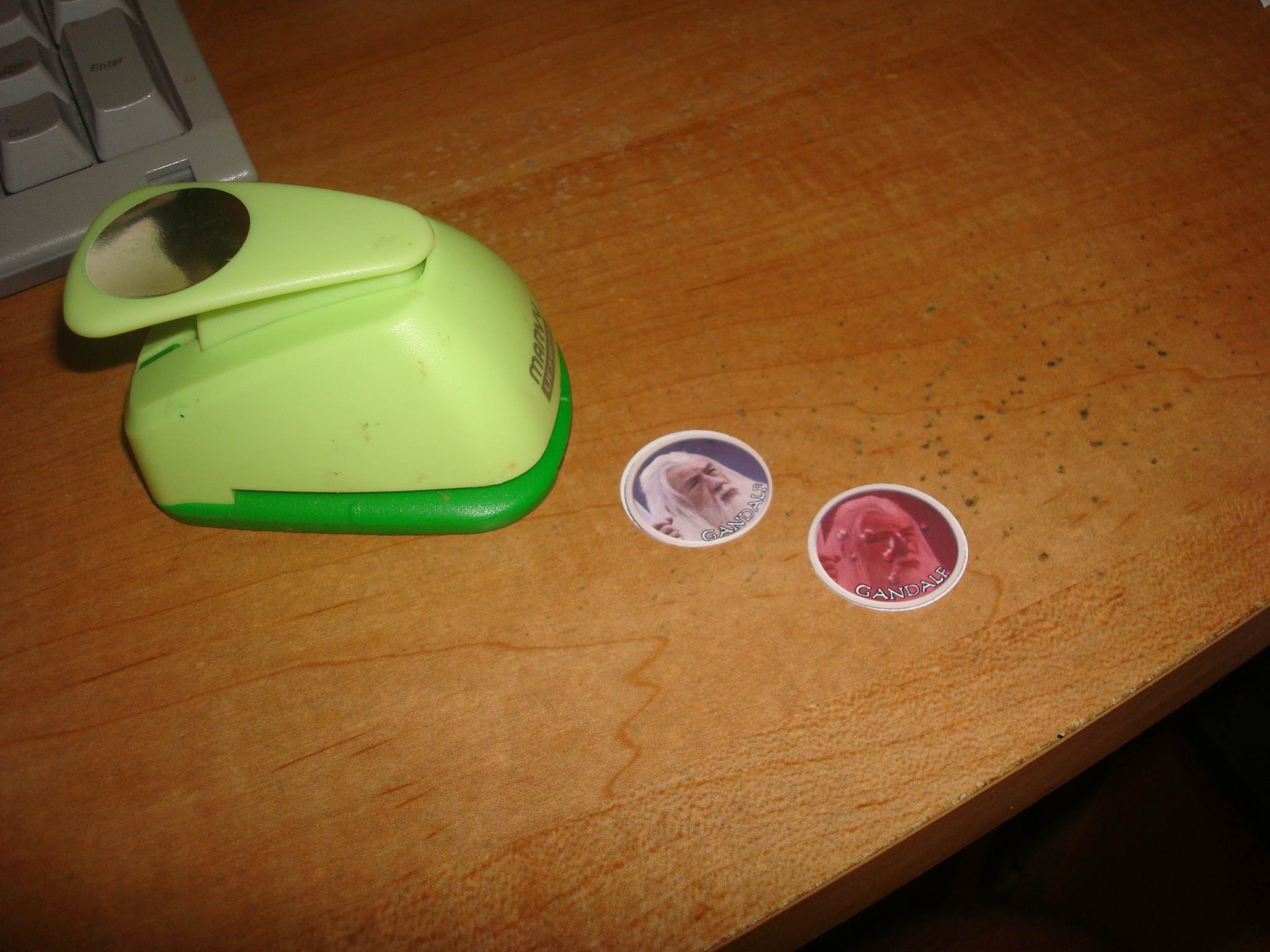
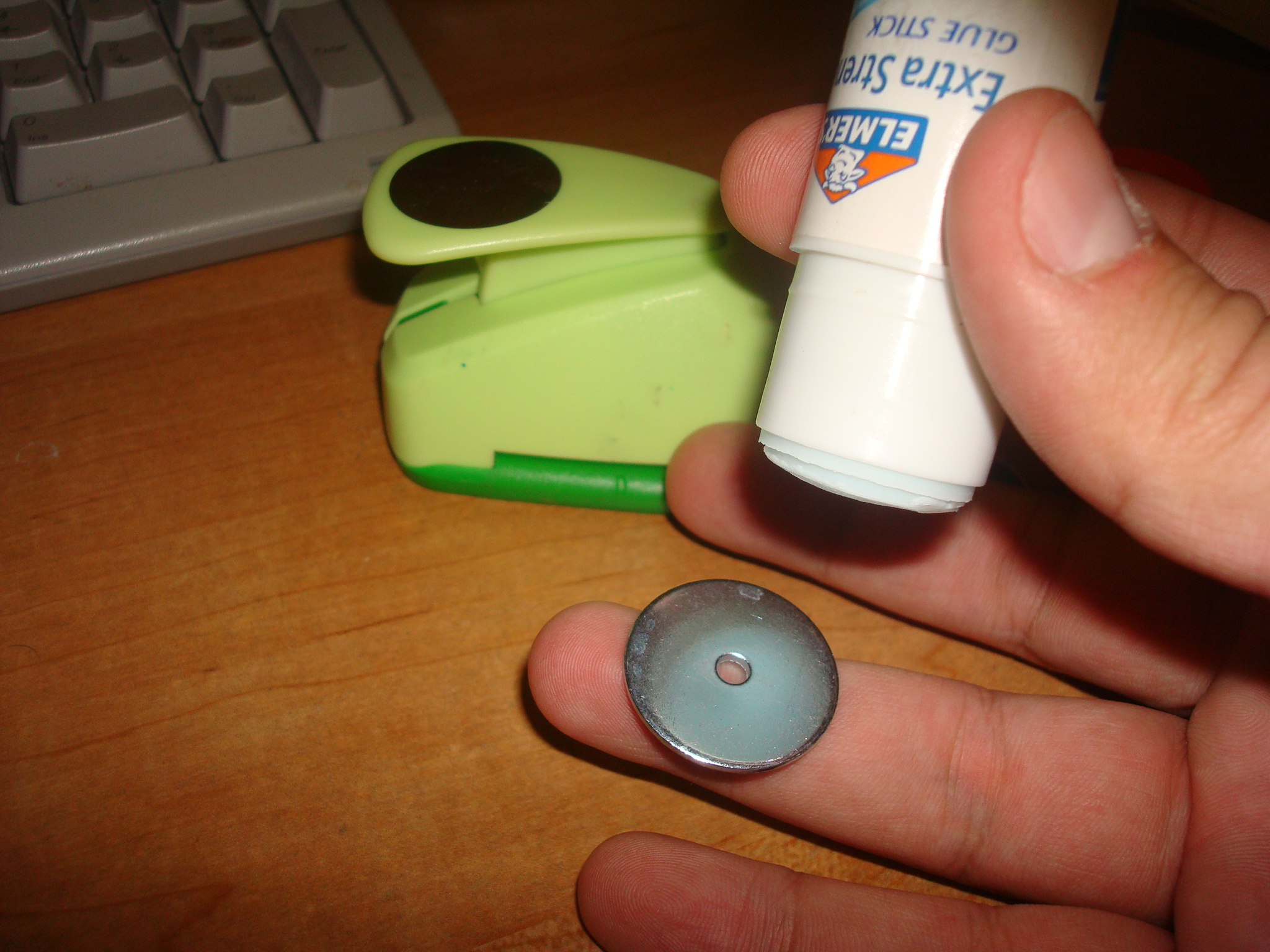
Next, apply your glue directly unto the metal washer and stick and stick Gandalf on there. Then just flip him over and apply more glue, and stick the bloody Gandalf on the other side, and there’s your token!
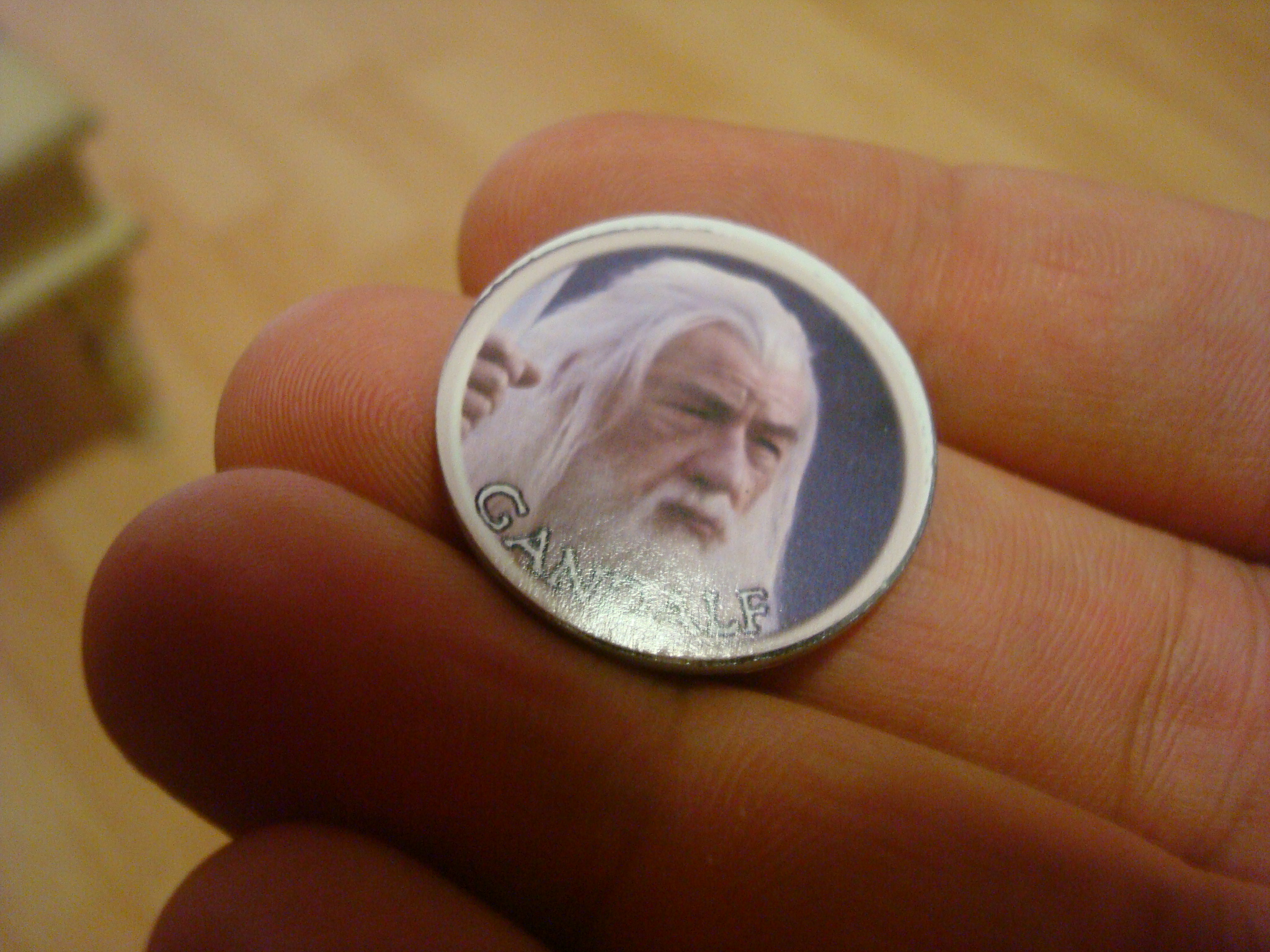
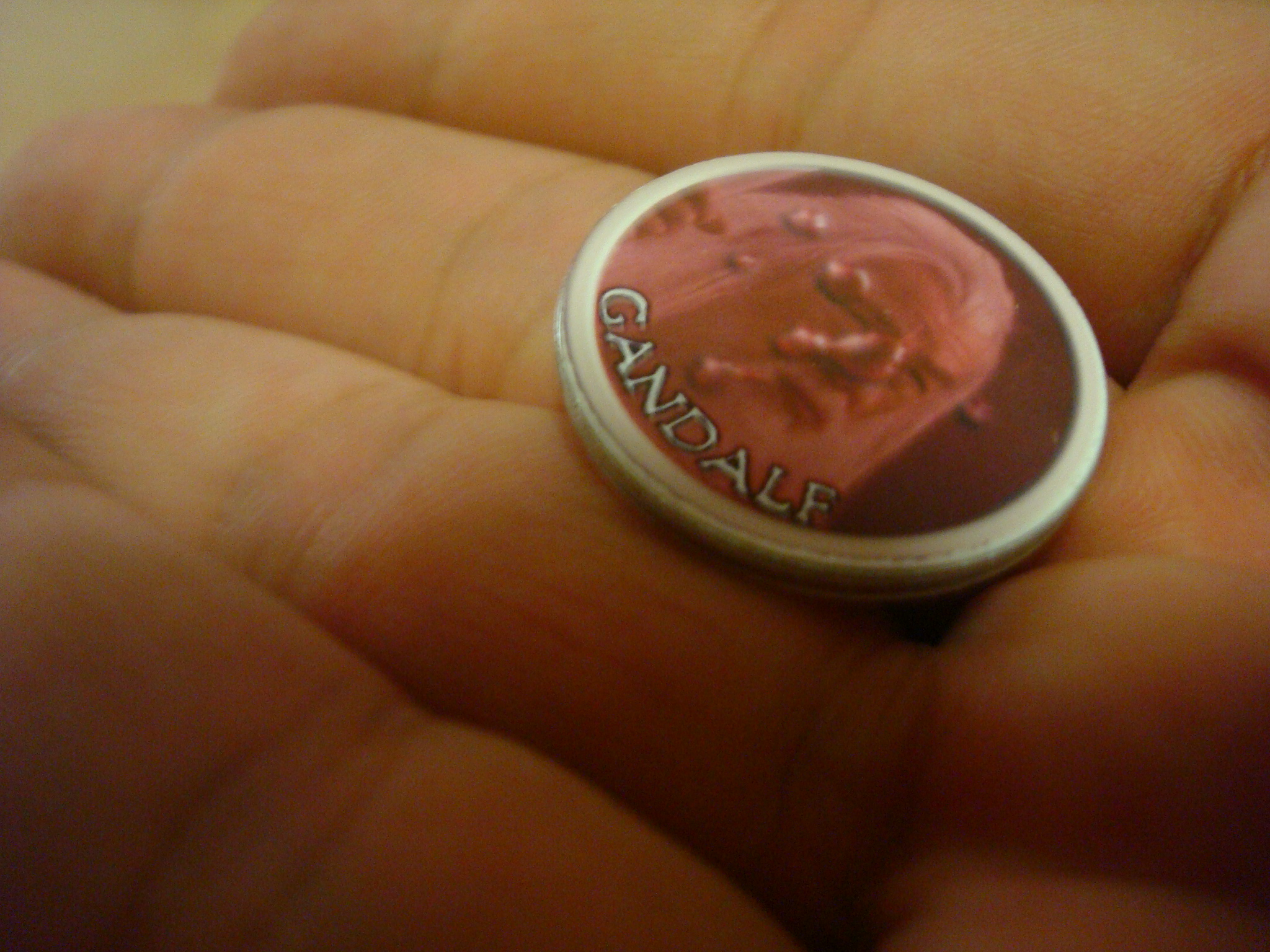
If you decide to use these, you’ll see that it leads to faster game play. Everyone knows who’s who at the table, monsters have numbers to make running them simpler, and players can custom design their own look. I gave my friend elf ears in photoshop and he uses his own picture.
One last thing. When I first started making these, I made the mistake of making minions like this as well. Minions never get bloody though, so I was wasting time and ink. What I do with minions is diferent. I print them out on cardstock, and stick them on 1″ round wooden disks. Michael’s Craft store has a bag of 52 alphabet circles for $2. They also come with an adhesive built in. Just peel the backing and stick your monster. They work perfectly for minions, since it’s possible to have so many of them at the table. They are a lot lighter than metal washers as well…
Lara’s Wood Painted Package Sticker Alphabet Circle (Pack of 6)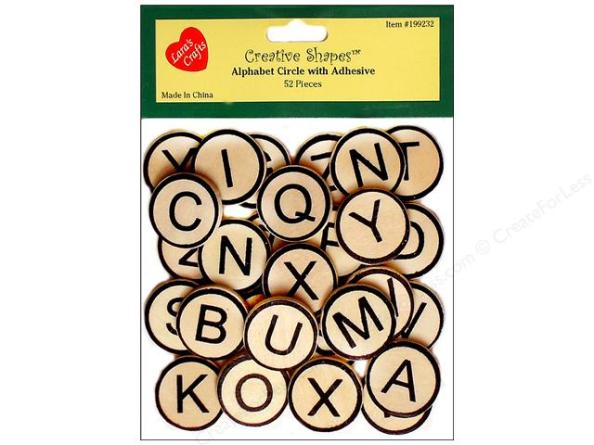
Well, that’s it. Wow, that was long… If there is anything you don’t understand, leave me a message and I’ll try to help you out.
If you found this tutorial interesting and useful, perhaps you’d like to purchase your supplies for it using the following Amazon links, and help out the site at the same time:
Ek Success PSPNP13 1-Inch Paper Shapers Circle Nesting Punch
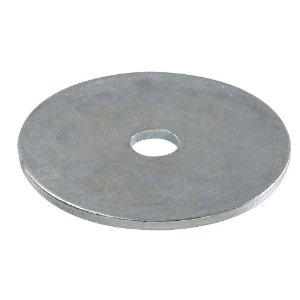 100 count 1″ washers for $9.66

6 pack of glue for $6.49
Lara’s Wood Painted Package Sticker Alphabet Circle (Pack of 6)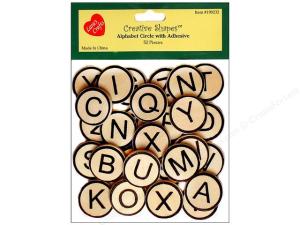
1″ Alphabet Circles (6 pack) for $16.14
Let me know if you make the tokens. I’d love to hear about it, and thanks for reading!
 Stumble It!


 www. Newbie DM .com
Swordgleam
November 22, 2008
Metal washers is a good idea. I was using coins as backing, and I ran out pretty quickly. I finally discovered mini poker chips, which are slightly less substantial than washers, but also cheaper.
M Harnish
November 23, 2008
Nice article.
Neubert
November 23, 2008
I’ll probably try this when I go to the US for christmas.
Since I don’t think I can get the same supplies here (damn metric system!), I would have to buy the materials with me home, so I’d like to get enough the first time. Hence, I was wondering if it wouldn’t be possible to use the alphabet circles for all the tokens? (or the other way around, but the alphabet circles seem cheaper).
newbiedm
November 23, 2008
@swordgleam – are poker chips exactly 1″?
@Harnish – thanks!
@neubert – you can use the circles fine… i like the strength of washers…
jonathan
November 24, 2008
this is friggen brilliant. TYVM!
Czar
November 25, 2008
I agree. Wonderful article with a wonderful product in the end. Anything that makes combat smoother is a plus in my book. Thanks!
zelgar
November 25, 2008
#1 Scale – wouldn’t it be best to scale the image in Tokentool instead of the GIMP.
#2 Bloodied – It looks to me that you’re making things hard for yourself, wrt the “blooded” state. One option would be using different outlines in the Tokentool program. Another easy way would be to adjust the colors of the image to get a red tint. Either way would require a lot less tweaking of the image.
#3 Cost – except for mass, wouldn’t it be cheaper to always use the wooden tolkens instead of the washers?
newbiedm
November 25, 2008
@Jonathan: let me see what you come up with!
@Czar: Thanks! I’ve been following your gametable posts, and I’m looking for a weeknight online game btw… 🙂
@zelgar:
1. You have to scale the new document in photoshop that you are dragging the tokentool token into, so that it retains its 1″ measurement.
2. You are right about the bloodied… I just know how to do it so quickly, I like the way they look… personal preference, i just thibnk they look cool for my particular game, but you are right…
3. Yes, the wooden tokens are way cheaper. I like washers for their weight & durability, but the wood is indeed cheaper. 52 for $2 at michaels can’t be beat!
Restless
November 26, 2008
Buying washers in the bag is too expensive. Buy a box of them at Ace Hardware, it won’t be a whole lot more per unit than the wooden circles, and I bet you can buy a larger bulk of fender washers than you can the wooden circles!
Also, if you want to print them in color without having water-based inks that will run you should consider just laying them out in 3×5″ sheets and getting them printed at your local Walgreens or CVS. It’s really cheap and the glossy photo paper holds up extremely well.
newbiedm
November 26, 2008
walgreens is not a bad idea, save on ink….
3×5 or 4×6?
Restless
December 1, 2008
Whichever’s cheapest! At 1×1 for a token, you’ll get 15 or 24 respectively, so just just work out the per-token cost with each size.
Mike
December 18, 2008
Great idea. I started searching for the hole puncher. Where did you get yours?
Mike
December 18, 2008
Great idea. I started searching for the hole puncher. Where did you get yours?
newbiedm
December 18, 2008
YOu can get it at Michael’s crafts store, they are a chain, so they may have some where you live.
If not, http://www.aleatools.com sells them.
ChaoticBlackSheep
December 27, 2008
This is a great idea. We have done something similar but with more expensive wood discs (they hold up better than the alphabet ones – washers are a great alternative though). You can get larger wood discs as well.
Rather than printing on glossy photo paper, I print on cardstock and laminate the pictures myself with clear packing tape (carefully apply the tape to both sides of the paper and cut around your counter) so that they are thicker, durable and somewhat water resistant. Then we use peel and stick removable tabs (found in the scrapbooking section of the craft store) to stick the laminated images to the wooden discs so we can reuse the wooden discs; thus, we don’t have to make counters for everything to keep forever and save some money (and they store smaller completely flat).
Kutulu
February 1, 2009
Helpful hints for anyone using GIMP, I’m using thie technique without even the Tokenizer software. Here’s what I’ve been doing:
1. Find a suitable image on the web. Especially useful is perusing Wizard’s mini gallery for the exact creature you want.
2. Copy the image to your clipboard (in Firefox, it’s just right-click – Copy Image)
3. In GIMP, File – Acquire – Paste as New.
4. Select the circle selector tool, and do the following:
a. Check off “Fixed” aspect ratio
b. Set the aspect ratio to 1:1 (the default)
c. Switch the “Size” boxes from px. to in.
5. Drag a 1″ x 1″ circle by watching the Size boxes, then drag it to an appropriate location.
6. I usually resize the image to give me space at the top for the caption:
a. Image – Canvas Size, and iIncrease width & height
b. Click the “Center” button then the “Resize” button
c. Image – Flatten Image to fill in the background
7. Once your circle is where you want it:
a. Image – Crop to Selection
b. Select – Invert
c. Select the eraser and erase away
This gives you a perfect 1″ x 1″ round token image, which you can paste into a new image. Just make sure your new image has the same resolution as the original; for example, if you use the “US Letter (300 ppi)” template you’ll probably need to resize your image to 72ppi.
Also, to make curved text is a bit tricky, but basically:
Use the Path tool to drop a starting and ending path point. Then, still on the path tool, click and drag the middle of the path up to make a curve. Switch to the Text tool and type whatever text you want, then click the “Text Along Path” button on the tool window. This makes a *new path* that is the outline of your text, so you’ll need to make a new layer, pick Selection – From Path, then Edit – Fill with BG Color to get words. Once you do this you can delete your Text layer and two paths.
Ray
March 2, 2009
On GIMP, how do you paste so that you can get multiple images in a single print? I can only print one token per page, and MS Paint isn’t printing them to their 1-inch scale.
Seguaro
April 22, 2009
You can buy round 1″ labels instead of buying a hole punch. http://www.labelsbythesheet.com/ has 1″ white glossy labels for less than $1.00 a sheet. They also have sizes up to 4″. I use these to make my counters.
newbiedm
April 27, 2009
Seguaro:
I bought these, but I can’t get the template to line up properly when I print using the 2″ ones… have you had a problem?
Lunarix
May 8, 2009
Great writeup! this is exactly what i have been looking for!
Just a quick question though, what do you do about larger creatures?
newbiedm
May 8, 2009
Lowe’s sells 2″ washers, and Alea Tools, or Michael’s Craft stores sells a 2″ hole punch!
As for larger than that… well… I don’t know….
Alex
May 12, 2009
http://www.woodnshop.com/default.htm
If you go to “Craft Parts” then look for “disc” at the bottom are 1/8″ thick x 3″, 4″, or 5″ diam wooden circles.
They’re not badly priced per unit, it’s shipping runs a little spendy, but since there is less demand for huge, colossal, and gargantuan creatures in general, buying 20 – 25 of each would probably set you up for quite a while, and only run you around $30 – 40$ including shipping.
Alex
May 12, 2009
Alternatively, most towns have at least one woodworking shop. If you find a smaller, privately owned, shop and asked really nicely, I’m sure most of them have large-size hole bits for their drills, and would take the five minutes it would take to punch out some wooden circles for you…as long as you provided the wood for them. I haven’t had the need yet to put a huge monster on the board (just went to Lowes last week to set up for large creatures), but when I do, I’m going to head to the Saturday Market and talk to some of the wood-workers there.
Ariten
May 27, 2009
Thanks for the idea, I love the token’s I’ve made so far. I also took your advice of buying the small dollar tubes and they’re perfect for these tokens.
Only problem is that the group I’m with at home have tokens so I only get to test the bonus tokens. But, when I go back to school I’ll get to test them out as my primary markers. Thanks again for this tutorial and happy gaming.
Czar
July 22, 2009
I find with the washers, I can remove the pog easily and redo them just by soaking in some hot water for 5-10 min. Grabbed a pack of 30 at Lowes for $1.77 ..also, they sell 2″ washers for around $0.21 each for those Large creatures.
newbiedm
July 22, 2009
Czar, I bought the Lowe’s 2″ washers. Alea Tools sells a hole punch for that size as well for about 13 bucks.
PJ Rake
November 5, 2009
great, great tutorial!
i have a question regarding TokenTool… is there a way to make the “ring” transparent, or invisible? Since the tokens are already small (1″), i want to get as much of the image on it as possible, and the ring (which does look great btw) does rob me of some of the image.
thanks!
PJ Rake
November 5, 2009
one more question: how do i create a Large token; one that takes up 4 squares. would i make the H and W 800? i want to make some Dragons and Hill Giant tokesn.
Vigilante
November 26, 2009
Any ideas for doing this without tokentool? I downloaded this, but it doesn’t want to work for me. So would there be maybe a different photoshop based way?
newbiedm
November 26, 2009
Yes, Import an image into photoshop, then crop it with the circle tool to an inch. It won’t have a border, but who cares?
Lithorne
January 13, 2010
You can find up to 4″ wooden tokens at craft stores, but they start to get expensive at the larger sizes. A cheaper alternative is to use Bazzill chips (heavy cardboard coins you can find at a scrapbooking store) or cut your own. For cutting your own, I recommend the adjustable circle cutters sold at craft stores–they have a tiny razor blade which travels in a circle. It works well for paper, and will also cut cereal box-weight cardboard if you press firmly. Don’t try to use the kind of circle cutter pictured here for cardboard; I broke my Fiskars 1-inch punch doing that.
Theodore
January 14, 2010
That is so cool.
Mosuke
January 15, 2010
Well, I’m making some for Keep on the Shadowfell and they work perfectly, the only trouble is that I fon’t have a hole punch and can’t buy one, so must cut them out with scissors :S but well…
Great tutorial, really useful. I was in trouble with the minis, I’ve got some, but not too much ^^
Thanks a lot!
Nosferatu1208
April 29, 2010
Brilliant. Not to mention cost effective
Lola
April 30, 2010
Mod Podge otherwise known as decoupage glue would also work wonders and make them water resistant. It dries clear and is helluva strong adhesive. I’m definitely going to make some of these. They’re more personalized than minis for PCs!
Nicholas
May 3, 2010
I bought the exact same hole punch you have up there but mine is apparently defective. It leaves 4 very sizable spots where it doesn’t actually punch all the way through. That leaves me either trimming it the rest of the way with scissors or rotating it and trying again repeatedly.
I should have just sprung for the more expensive one.
newbiedm
May 3, 2010
Weird. Mine is going strong. You got a bum punch my friend.
Erik
August 12, 2010
Just a caveat emptor: I highly suggest shopping around to see if you can locate the Alea Tools products elsewhere. One of my items arrived damaged and I tried to get in touch with someone at Alea Tools. Despite repeated efforts for nearly a month to contact them using the e-mail addresses provided on their site (plus replying directly to the invoice e-mail) I never heard anything back. Once I looked around online I heard from other people that the company does not seem to reply to e-mails–ever. As neither their site nor their invoice included a phone number, I was (and am) at a dead end. Their products may be a good idea but if you run into a problem with missing or broken items, or any situation at all in which you need to reach someone at the company, best of luck. Remember: caveat emptor if you place an order with them.
Doug
September 17, 2010
Fantastic info and great tips from commenter, as well. Definitely something to consider if I can get my pathfinder campaign off the ground this year.
Vincent Noiseux
October 6, 2010
I really like washers for this, I use them with a magnetic rod I made myself (stick of wood with a Dollar store magnet glued to the end) to move them around and lift them off the table.
Also, I made 1″ tokens with status effects that I can pass around (very useful for those temporary boosts or penalties that do not really exist in any of the token system out there)
Melissa Moritz
November 27, 2010
A friend of mine made tokens out of wooden disc blanks for our Werewolf: The Forsaken game. I’ve got two posts showing them off: http://bit.ly/gb4PUn & http://bit.ly/dQgIzP
I’ve used a similar method for tokens with the round 3/4″ magnets and initiative trackers out of the rectangular magnet strips from the craft section at Walmart. http://bit.ly/fC7bum
James
February 23, 2011
I plan to make some of these when I can be bothered to go out for some washers and glossy card. I already drew up the tokens in fireworks. As I just wanted lettered tokens for more diversity (eg: a token with a B on it meens brute), I figured I’d draw them up myself. I did download TokenTool but wasn’t too fond of it so I just drew up some circles and downloaded a font that was both fantasy and readable. If you like I can send you the PNG file or JPEG of the tokens for you to upload here as a downloadable if you think they are good enough quality. Also could send you some finished shots of the tokens once they’re done. 🙂
Let me know, James.
Aaron
February 27, 2011
If you have a round hole punch, do you really need to spend time on the computer making a round image? You could just as easily create a square image and punch out the round shape. It may waste a bit more ink, but it would seem to save a lot of effort.
dungeon master
April 9, 2011
is there a way to do this with microsoft word ?
the hekerler
August 16, 2011
it sucks i mean whats the blood picture for
top mistakes
December 9, 2011
Your blog is pretty cool to me and your topics are very relevant. I was browsing around and came across something you might find interesting. I was guilty of 3 of them with my sites. “99% of site managers are committing these 5 errors”. http://bit.ly/ts0ScL You will be suprised how fast they are to fix.
Gavvro Greywacke
January 28, 2012
I’m planning to DM a custom campaign for the first time and I was glad to come across this tutorial. I never knew there was such a thing as a 1″ hole punch, and I didn’t look forward to cutting out every single token by hand.
A few suggestions:
(1) Skip the circle template business and just create a 4″x6″ grid, and paste in 1″ pics, to make 24 pics per grid. The hole punch will take care of the cropping. Save it as a *.jpg file and upload it to the photo site of your choice. Walgreens sells 4″x6″ prints for $0.12 apiece, which at 24 tokens per print means a HALF A CENT PER TOKEN. Can’t get much cheaper than that.
(2) To mount them, go to your local homebrew shop or search on Amazon for bottlecaps. I found a gross of them (144!) for $2.50 plus $5.49 shipping. Buy two sets and that nets you 288 for $10.49 which works out to roughly 3.6 cents per cap. They’re durable but lighter than metal washers, plus if you re-use your own they’re free (finally I know why I’ve been hoarding them all these years!). Similarly, milk caps are perfectly-sized for large creatures.
Total spent = 4 cents per token (4 and a half if you want double-sided) for regular-sized creatures. If you want to get fancy, you can get 1″ circle clear epoxy stickers to put on top, easily found with scrapbooking supplies or on Amazon; these might be useful for distinguishing PCs and elites. The only other things necessary are the punch and the glue.
TJ
February 8, 2012
How about making the little tags like the one in the very top picture – that show status (stunned, etc..)? Do you just make those using MS Word?
TJ
February 8, 2012
What about making the markers that show if a character is stunned or prone, etc… Can you just do that in MS Word?
TJ
February 8, 2012
Sorry for the double post. My computer is acting up.
Emma
March 11, 2012
I wanted to thank you for this awesome tutorial. I used the Gimp for an image tool and a local drugstore to print these babies out for me. I can comfortably fit 12 on a 4×6 sheet using the snap and ruler tools in Gimp. It costs me a little under twenty cents a sheet for printing.
free online game online
October 26, 2012
After I initially commented I seem to have clicked on
the -Notify me when new comments are added- checkbox and
now whenever a comment is added I receive 4 emails with the same comment.
Perhaps there is a means you are able to remove
me from that service? Thanks!
Amelia Barney
December 20, 2012
I like the idea of using washers as they would probably hold up longer but might be heavier to carry around but then you could make a “pouch” to put them in which would look cool.
http://www.rippedsheets.com
Milton Murphy
February 19, 2013
Gavvro mentioned epoxy circles above. I also used them to make some of the handy little tokens. Some pics along with a few other suggestions are here:
http://nextcrazyventure.com/wp/blog/2013/02/19/tokens-1/
Thanks to NewbieDM for a cool idea!
–MM
Clinton Soran
March 10, 2013
Hey there, I have wondered about buying the software package DubTurbo Beatmaker and was hoping anybody could give me an actual real testimony of the program. Almost all the online resources that offer product evaluations at the moment are internet marketers selling the program therefore i don’t believe that the comments are trustworthy. Many thanks in advance for all information any individual can provide.
e cigaret test
April 9, 2013
Thanks , I’ve just been looking for information approximately this subject for a long time and yours is the greatest I’ve discovered till now. However, what concerning the conclusion? Are you sure concerning the supply?
Charlotte Clucas
April 27, 2013
Hi there! I know this is somewhat off-topic but I needed to ask. Does operating a well-established website such as yours require a massive amount work? I am brand new to writing a blog but I do write in my journal everyday. I’d like to start a blog so I will be able to share my experience and feelings online. Please let me know if you have any kind of ideas or tips for new aspiring bloggers. Appreciate it!Moreno Valley Roof Contractors, 22440 Mountain View Rd., Moreno Valley, CA 92557 – (951) 999-4300
Earnest
July 7, 2013
That is also good
Chris
September 26, 2013
Hey man, great guide! I’ve done this using the wooden circles, and i even found some larger 2 inch ones for large creatures. My question though: How do you represent a Huge or bigger creature? I haven’t been able to find 3 inch disks.
Milton Murphy
September 26, 2013
Hi Chris – I played around with this idea (wrote a bit on my blog about it here http://nextcrazyventure.com/wp/blog/2013/02/19/tokens-1). If you use the washers What I came up with was using cardboard (but thinking something like balsa wood would look nicer) cut in the appropriate dimension. At the center I glued a bit of that flexible magnetic material you find everywhere (mine from some pizza adverts I had laying around so no cost). The washer sticks to the magnet and voila your creature has a bigger footprint. You could even do this with wooden tokens if you simply glue some of the magnetic material to the bottom of the wood token. The end result is usable for larger creatures and enlarged creatures, lightweight, and easy to carry around with your bag o’ tokens.
Chris
September 26, 2013
Thanks Milton! I was a little confused what you meant at first but your blog post explained it very well, thank you. I also really like the felt bottoms and the epoxy circles. Great stuff!
how do you get diabetes
October 19, 2014
An impressive share! I have just forwarded this onto a co-worker who was conducting
a little research on this. And he in fact ordered
me breakfast due to the fact that I discovered it for him…
lol. So allow me to reword this…. Thanks for the meal!!
But yeah, thanx for spending some time to talk about this matter
here on your web site.
Jason
January 18, 2015
As a newbie DM on a budget, this was a sorely needed and excellent tutorial for me. Thanks so much for sharing! This whole site is a great resource.
hockey personal trainer london ontario
June 15, 2016
Pietro said his idols are Sir Isaac Newton, Arnold Schwarzenegger and the Rolling Stones, and he would teach math, engineering or be a personal trainer if
he weren’t a model.
JakeTheDM
July 21, 2017
For those of us visiting here about a decade later, this seems to be the best deal around for the wooden pucks:
And I recommend Paint.net (http://getpaint.net – turn on your ad blocker!) for editing circle icons, it’s much simpler and smaller than GIMP or PS, and is available on all platforms.
Thanks for keeping this article around!
newbiedm
July 21, 2017
Holy shit. You are right. This thing is almost 10 years old. WOW!!!! I feel old.
Silvio
July 21, 2017
Made my first token (a pirate): thanks to your advices it came out perfectly! Thank you!
76Edith
July 31, 2017
Hi blogger, i must say you have very interesting content here.
Your blog should go viral. You need initial traffic only.
How to get it? Search for; Mertiso’s tips go viral
Fr. Thomas (@AxidentalDM)
October 11, 2017
In case anyone is interested, FMW Fasteners is offering 1″ washers for 8¢ a piece and if you spend $25 shipping is free … that’s 313 washers in case you want the count.
neo1piv014
August 7, 2019
For what it’s worth, I found this guide in 2019 and decided to make my own tokens using your guide. I used Token Tool and GIMP, and after messing with the DPI setting in GIMP, I get 1″ tokens every time. Instead of washers, I bought a pack of felt furniture sliders off Amazon for super cheap. Just peel off the backing, and they stick. I also bought some 2″ and 3″ sliders for larger monsters and giants. Super easy tutorial to follow along with. Many thanks.
good site,thank you very much for your effort in writing the posts.
April 12, 2021
Really good site,thank you very much for your time in writing the posts.