So you’ve made yourself some kick ass tokens, but now you want to make yourself some kick ass maps to use them with. Well, you’ve come to the right place!
Taking a map from the Wizard’s gallery, and converting it to a 1″ playable map isn’t very difficult, and it looks better than some Dry-Erase markers a on a grid… although this may not be the best thing for every encounter… maybe just for the big fight at the end of the night or something… Take a look…


Nice, right? That’s not going to be the map I’ll use in the examples, but it doesn’t matter. If you want to do it along with the tutorial, the map I’ll be using comes from the Wizards gallery for Dungeon Magazine Issue 160.
Now, like the counters and tokens tutorial, I asume you are working with Photoshop for your resizing. You can use GIMP instead of Photoshop, but I do not know how to use it.
Let’s go then. you can click on the pictures to make them bigger.
1. Find, download, and open your map in Photoshop.

2. With the Rectangular Marquee Tool, making sure you make it a fixed aspect ratio, and outline along the lines of one of the squares on the grid. Then go to Window–>Info and make the “info” box appear.

3. You see the W and the H on the lower right of the “info” box? That’s the width and height of that square you selected with the Marquee Tool. It should be a decimal, because if it were a whole number, it would be that in inches. So let’s say it is .431 for width and height. That’s how big that square is. .43 of an inch wide. Almost half an inch. But we want to make that square a full inch.
4. Open your calculator in windows. You are going to divide 1 by the decimal. So in my case it will be 1 divided by .431
5. The answer is 2.32 so that’s what I’m going to use to resize the map. Go to Image–>Image Size. See the width and height there in pixels? I multiply the width listed there by 2.32, and that’s my new number. 1306. Enter that into the Width box. Make sure you selected the option to maintain proportions, and it’ll enter the height automatically. You could enter either one really, it doesn’t matter.
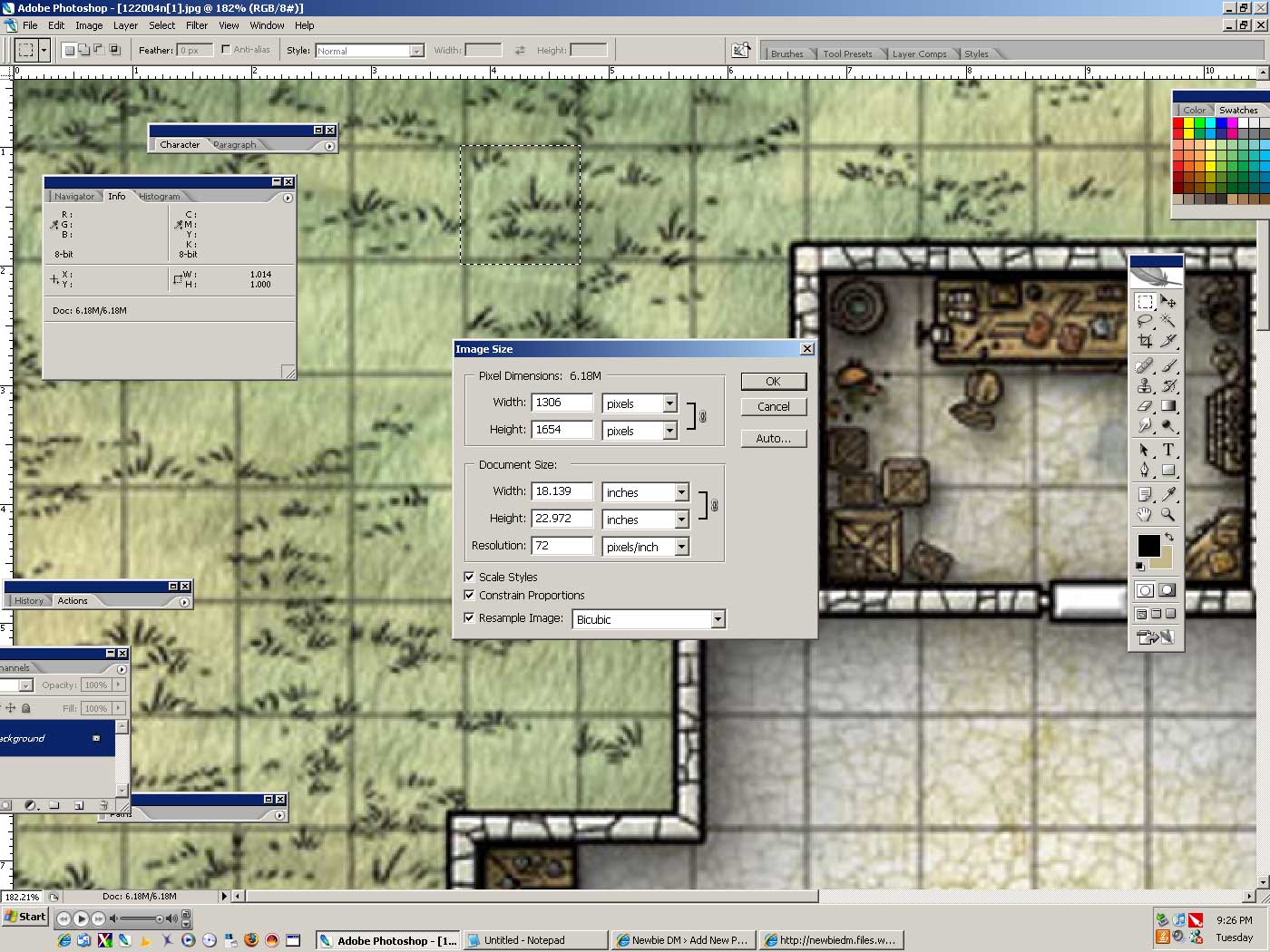
6. The map is resized. Go back to the marquee tool and select a square. Look at the info box. The height and the width should be about an inch. Maybe less, like .998 or more, like 1.01. It doesn’t really matter at that point. Now just save it as a jpg and that’s it!

You can print your scaled map in Microsoft Excel. Start a new book, and import a picture from file. When you import it, you can print it out, and Excel will automatically tile it accross multiple pages.
You can also download a program called Posterazor and play around with that, it makes posters out of your images. It’ll print at scale over multiple pages as well.
That’s it, pretty simple really. Just match up your papers and tape them. Use cardstock for best results, and use it at the table with your tokens or minis.
That’s it! Try it and let me know how it goes!

If you would like to support NewbieDM.com, perhaps you’d consider visiting Amazon.com for your next rpg related purchase. Check out the following products:

Dungeon Tiles Master Set – The City: An Essential Dungeons & Dragons Accessory (4th Edition D&D)

The Witchlight Fens – Dungeon Tiles: A 4th Edition Dungeons & Dragons Accessory (4th Edition D&D)

Thank You!


 www. Newbie DM .com
Czar
January 14, 2009
Dude…DUDE! I`ll totally be adapting this for importing maps in to gametable. -Thank you-
newbiedm
January 14, 2009
Does 1″ scale matter in gametable??
zelgar
January 14, 2009
I understand that you have Photoshop, but do you know how to do this in other programs. For instance, Ifranview is a freeware program that also allows for resizing. Do you know if it’s possible for that program or do you know of any other freeware programs that will allow you to perform the measurements?
Also, in your example above, it appears that the “squares” in the drawing were not perfect squares (0.431 x 0.417). You used the larger number to get the ratio for the resize (e.g., 1/0.431 = 2.32). If you took the smaller dimension for the resize, the magnification would be greater (e.g., 1/0.417 = 2.4) or the average being 2.36. Ideally, you would rezize by the two different dimensions to get the “ideal” 1″ scale.
newbiedm
January 14, 2009
Zelgar:
You are right, it is not a perfect square, because I didn’t use the marquee tool correctly to select a perfect square. It was obviously a little large on a side. I think I would have to hold down shift or something like that to make it a perfect square. There is a way to do it. I went the fast way, to get it done quickly. Again, I think holding down shift while you drag the marquee tool creates a perfect square.
I honestly am not sure about other software. The concept is the same, measure the current square dimensions, and resize it based on the numbers.
Brian Kelly
January 14, 2009
You can hold down shift or you can change the Mode of the Marquee tool to “Fixed Ratio” and put in equal numbers like 10×10. That will force it to be square but allow you to vary the size.
grogthecaveman
March 5, 2009
Dude, this tutorial is WAY easier than what I was doing before – using the free transform tool and eyeballing it with some guides set at 1″ intervals. You freaking rule. Now my issue is simply finding maps with a resolution that’s good enough that they don’t look crappy blown up so large.
newbiedm
March 5, 2009
Grog, I’m gonna print out your comment and show my wife.
The next time she argues with me I’m gonna tell her “who ya talking too? I fu***ng rule woman!!!”
Thanks for the nice compliment and good luck with your gaming!
grogthecaveman
March 6, 2009
by the way i tried some things out with GIMP and it’s pretty simple to use the same idea. Use the Measure function (ctrl+shift+M..?) to measure a line. If you get a result like 0.21 inches just scale up the map +/- 500% and BAM you got a full scale battle map. It seems to run smoother using GIMP on my 2004 AMD el cheapo laptop than with Photoshop on my 2006 dual processor big money Mac G5. Go figure.
jtptan
May 14, 2009
Tried this and it worked great, I never thought of this method to work it – way easier than what I’d been thinking I’d have to do.
If you want to save on ink then desaturate the picture a little, and otherwise play around with the contrast till you’re happy. This can be done to make a greyscale map usable (sometimes colour to greyscale gets confusing – a lot of the time this can be fixed by playing with the levels)
And it can make a colour map use much less ink while still being usable, and looking quite nice. Now if you’re getting them printed somewhere else and they’re charging by the page, no difference to you, is it? This is more useful if you’re doing it at home.
In Photoshop, hue/saturation is command-U and levels is command-L (that’s in mac – probably ctrl-U and ctrl-L respectively in windows). Both, and other ways of messing with the overall picture, are under Image>Adjustments.
Noumenon
June 26, 2009
If you do not have Photoshop then you can use this method to stretch your maps to 1″ squares and print them using Excel.
Patrick
August 2, 2009
Ok, i have a question regarding this. I have a picture that is W:2428 / L:2095, somehow am having problem doing the adjustment.
I made a square that is 0.158 by 0.158, i have divided 1/.158 = 6.32, and then i took the W: 2428 and multiply it by 6.32. The problem is that the picture is getting huge.
newbiedm
August 3, 2009
Huge how? In Megabyte size, or in actual inches?
Remember, each square is an inch, so a 20 square across map is 20 inches!
What exactly are you talking about?
What you can do is cut it up into sections and work on sections at a time that you paste later after being printed out.
Patrick
August 3, 2009
Ok well what am gonna do is give you a link to download the map i want to scale and you can try it. I have scanned it at 600dpi so it could be better looking at higher resolution.
Just that you know that i was able to scale other picture but i was unsucessful when i use scanned picture.
http://tic.cegep-chicoutimi.qc.ca/pkennedy/download/600dpifull.rar
Patrick
August 5, 2009
😦 Guys anyone can help me on this, ive been working on my problem and i can scale the image properly. Maybe the image i have scanned isnt ok or at to high resolution or something else, can anyone help me? You can dowload my image at the link on the post above, thank you.
thorkull
September 1, 2009
Ok, well, you’re working on a 28 MB png file, not the most efficient file format. I’d try converting to a jpg or gif and then resizing it. That should reduce the file size
wanderingclover
October 24, 2009
Brand spanking new DM here with absolutely no experience with the game. My wife, a couple of friends and I decided to dive into the D & D world. Mostly for the game and social aspect of it.
I’ve been going over then net, trying to find some starting advice and I keep coming back to your page. I live in a part of the world where there are literally no hobby stores for hundreds and hundreds of miles. The DIY gig is about the best we can do without paying an arm and a leg for shipping. A lot of your posts and links are just what we need to get started and not use lego men for markers 🙂
I just finished this tutorial with GIMP and it was easy as can be. I used the above comments suggestion of using the measuring tool and your calculator step. No problems.
Looking forward to more of your posts. Now I’m just waiting for the books to come in the mail…
Serventus1975
December 29, 2009
I am sooo lost on how to make this turn out the way I want. I downloaded GIMP, because I can’t afford anything that actually costs money. My problem comes from having never used anything like this before. I know it would be easier to just draw by hand on graph paper, but then I wouldn’t be making the game what I have always felt it should be. Anyway, if anyone happens to be in s/e Connecticut and willing to show me how to do this then please contact Serventus1975 on Yahoo Messenger.
Arasaka
January 4, 2010
Thank you for sharing this! It will come in very handy!
I noticed that – in it’s original form – the map you use from Dungeon #160 has room numbers, monster starting locations, and text on it. How did you go about removing those things to get the image you use in the example?
Thanks in advance!
newbiedm
January 4, 2010
I either photoshopped out the stuff, or it was one that wizards offered unmarked on their site. I cant remember. 🙂
Sharp Walker
January 13, 2010
That’s really great!
Dave
March 19, 2010
I use Paint.Net which is a freeware image editing tool to scale my maps. Works great and is free. One drawback is the actual printing of the maps – it uses the MS Photo printer wizard which I’m not fond of. To print the maps, I simply bring them up in good, old, MS Paint and it will tile them across pages.
Another trick is to use the Snapshot selection tool in Adobe Acrobat to pull maps from PDF files. First zoom in to about 300% to get the resolution roughly correct, then drag a rectangle around the map. It automatically copies it to the clipboard. Paste the image into Paint.Net, clean it up, resize if necessary and print.
http://www.getpaint.net/index.html
Kalvin Lyle
May 16, 2010
I’ve never take the time to rescale maps from adventures. I’ve been wondering lately if it’s cost effective. What’s the cost of printing a sheet of paper at home, £1, £2? Would it be less expensive to print full size posters? At least that way they wouldn’t be destroyed when someone spills the beer.
Great tutorial by the way!
Behemoth0089
July 9, 2010
This is a great tutorial, the only one I’ve never used from newbieDM. Really useful if you don’t wanna spend a lot of money for some maps for home game 😉
Chris
February 15, 2011
Can’t you just count the number of squares on the map you want to resize and then set the height or width to the number you counted? Example, you have 12 squares across, you set your Width to 12 inches. I tried it and the squares come out to about an inch. Possibly, they are exactly an inch but I don’t know where the aspect ration doohickey is.
Kizan
October 22, 2011
A while back a buddy of mine and I worked on the gridded map scaling problem and we built a nice little XLS file (with instructions) that would rescale a map to be square.
http://www.beauvais1.com/wp-content/uploads/mapscaletool-101a.xls
nameplate necklace
March 9, 2013
Such a excellent post and certainly served to clear my head a little
bit
DM Misha
March 7, 2014
Ok. Seems I’m missing something here… I have PS. I’m able to select a square and set it to a 1x 1 ratio. Then take the info from that square, do the math and plug it in, then convert the new larger image. But the new image loses a lot of quality!? What am I missing here? Does my original pic need to be of a certain quality? I’m tempted to do as one of the comments stated… do a grid/square count and just resize it to that many inches. Perhaps my problem with losing quality is the original dpi!? Any way to fix this?
Griff
March 4, 2017
First off thank you for this, I really appreciate you taking the time for this tutorial. I am doing something wrong though, I can resize the file, save it as a jpg, insert it into excel and print, but for some reason it never comes out 1×1. I’m wracking my brain trying to figure out what I am doing wrong. I have checked my printer settings multiple times, never seems to pan out. Any suggestions?
marc
July 27, 2019
hi, I tried using this to make mine in 1″ squares, but when I open the map it is tiny, so I zoom it to make it big enough so I can use the marquee tool when I do the square I see that its 1.02 by 1.03, not small like you. what do I do now? I’m lost. how do I make it bigger?
joe
February 11, 2021
I don’t know if this is the place to do it, but I’m asking for help. Does anyone know how to resize the maps with google drawing? I followed the directions up top they worked somewhat but I think I did something wrong because I only got a part of the map but it was in inch grid .